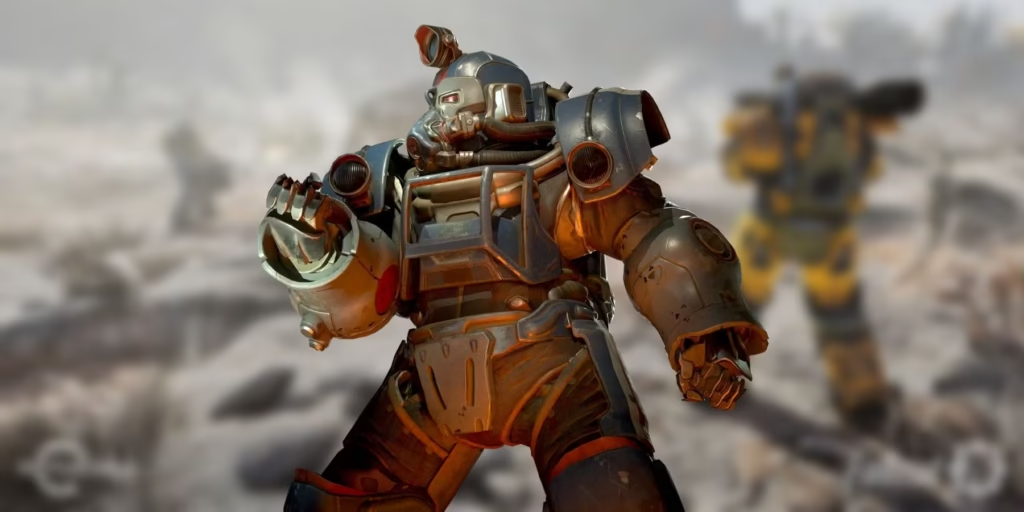
If you’ve ever tried to craft Power Armor in Fallout 76 and run into glitch after glitch, you know how frustrating it can be. You gather your materials, head to the station, and suddenly…nothing. This guide walks you through every proven fix to get your power armor up and running. Whether you’re struggling with a stuck chassis or you have no crafting options, these steps will help you craft, modify, and enjoy your armor without further frustration.
Keep reading to see what to check first, what settings might be throwing you off, and the exact files to delete if all else fails. By the end, you’ll have your armor ready to go—no more being left out while friends stomp around in their metal suits.
Why This Problem Occurs
Many players find themselves locked out of the crafting interface at Power Armor stations. Sometimes the game just won’t open the crafting menu. Other times, the chassis gets stuck on the station. In some cases, certain stations in the world never work at all for you. The root cause can vary from a small oversight, like forgetting to read plans, all the way to a deeper glitch that requires resetting game configuration files. Let’s walk through each fix so you can pick the right one for your situation.
Check Your Basics
Before diving into any deeper fixes, be sure you’ve covered the basics:
- Minimum Level
Some Power Armor types require a minimum level (e.g., 25 for Excavator). If you’re below that level, you won’t be able to craft them even if you have the plans. - Plans Read
Make sure you actually read the Power Armor plans from your inventory. If they remain “unlearned,” the crafting option won’t show up at the station. - Have A Spare Chassis
You need to place a Power Armor frame on the station. If you’re missing a chassis, find one in the wild by adding a fusion core to an unclaimed frame. - Sufficient Materials
Some armor pieces require rarer items like Black Titanium. If you lack these resources, the game often won’t let you proceed.
If everything here checks out, move on to the bigger fixes.
Use A Different Power Armor Station
Some in-game stations are notoriously buggy. Before trying anything advanced, simply move to another station. Avoid high-traffic areas like Whitespring or the Garrahan Mining HQ, where you picked up the Excavator quest. Many players have success using the station at Crater, Foundation, or even Nuka-World on Tour. Build a station at your own camp, too. Sometimes that alone solves the issue.
Drop & Re-Equip Your Fusion Cores
Power Armor frames and fusion cores sometimes don’t sync up properly. A quick fix:
- Drop All Fusion Cores: Take every core out of your inventory and drop them on the ground.
- Pick Them Up Again: Return them to your inventory.
- Insert One Manually: Place a core directly into the frame before you try to craft or modify anything.
This might feel odd, but players have reported immediate success with it.
Enable Power Armor HUD
A hidden setting often blocks the crafting interface. Here’s the quick remedy:
- Open Settings: Go to your game’s main menu and choose Settings.
- Navigate To Display: Look for “Enable Power Armor HUD.”
- Turn It On: If it’s off, switch it to on.
- Restart If Needed: If toggling it doesn’t take effect, exit to main menu and then jump back in.
Once this is done, try accessing the station again. Suddenly, crafting menus that were locked out may show up.
Delete Or Reset Configuration Files
This fix has saved players who were completely stuck for ages. It can feel drastic, but it usually works when nothing else does. It resets some custom settings, but won’t remove your character or progress:
- Back Up Photo Mode Shots
If you like your in-game photos, back them up. Find them in the “Photos” subfolder within your Fallout 76 directory (often located in Documents/My Games/Fallout76 on PC). - Delete The Configuration Files
- Close Fallout 76.
- Go to Documents/MyGames/Fallout76
- Delete the folders named Fallout76 and Fallout76Prefs.
- Some users report needing to delete a Fallout 76 config file in the Steam directory. If you have a Steam install, you might try that as well.
- Restart The Game
Relaunch Fallout 76. New config files will generate automatically. Don’t worry—your character data is server-based, so it won’t vanish. - Try Crafting Again
Return to a Power Armor station (preferably one you trust). In most cases, the menu should open without errors.
This method has made a lot of players cheer—no more glitching, no more locked stations.
Confirm Your Perks (Optional)
Some players swear you need the Power Smith perk to craft certain pieces or mods. While you can craft basics without it, advanced modifications might require it. If you have perk points to spare, invest in Intelligence-based perks that improve your crafting range.
Test Another Power Armor Frame
If your specific chassis is stuck, using another frame might help you bypass the bug:
- Find A Fresh Frame: Go to a known spawn like the Morgantown Trainyard or just random Power Armor spawn points across the map.
- Claim It: Insert a fusion core to make it yours.
- Head To A Different Station: Return to your base or a well-known stable location (like Foundation).
- Place The Frame On The Station: Try crafting again.
This is especially useful if you suspect your existing frame got bugged by previous attempts.
Quest-Related Issues
The Miner Miracles quest unlocks the Excavator Armor plans. If you picked up an Excavator suit someone dropped before finishing that quest, your character might be bugged. Double-check you’ve completed the quest fully:
- Use The Terminal: At Garrahan Mining HQ, learn the blueprint from the terminal.
- Craft Excavator Pieces: Make sure you haven’t missed any steps.
- Avoid “Gifted” Excavator Armor: If someone gave you the pieces, you might need to discard them and craft a fresh set.
Wrapping It Up
When Power Armor crafting locks up in Fallout 76, it’s not always obvious which fix will do the trick. Start simple: verify you read your plans, switch up stations, or drop your fusion cores. If that fails, toggling “Enable Power Armor HUD” can spark the crafting menu back to life. Still stuck? Deleting your configuration files or picking up a fresh chassis often resolves even the most stubborn glitches.